
Want to enjoy your favorite music, podcasts, or calls through your car’s stereo without any hassle? Connecting your iPhone to your car stereo can make every drive more fun and convenient.
But if you’re not sure how to do it, don’t worry—you’re in the right place. This guide will walk you through simple steps to get your iPhone and car stereo working together smoothly. By the end, you’ll be ready to hit the road with great sound and hands-free control.
Keep reading to find out exactly how to connect your iPhone to your car stereo easily and quickly.
Credit: www.iphonelife.com
Prepare Your Devices
Getting your iPhone connected to your car stereo starts with preparing your devices properly. Skipping this step can lead to frustration or poor connection quality. Taking a few moments to check compatibility, update software, and gather the right accessories can save you time and hassle.
Check Car Stereo Compatibility
Not every car stereo works seamlessly with an iPhone. You need to confirm if your stereo supports Bluetooth, USB, or auxiliary input connections. Check your car’s manual or look up the model online to see which connection types it supports.
Some newer car stereos even support Apple CarPlay, which offers a richer, safer interface. If your stereo doesn’t support these, you might consider aftermarket options or adapters.
Update Iphone Software
Your iPhone’s software can impact connection quality. Make sure your iPhone is running the latest version of iOS by visiting Settings > General > Software Update. Updates often fix bugs and improve connectivity features.
Have you ever experienced your phone freezing or disconnecting mid-drive? Updated software can prevent that by keeping your system stable and compatible with your car’s tech.
Gather Necessary Accessories
Depending on your car stereo’s compatibility, you may need some accessories to connect your iPhone. Common items include:
- A Lightning to USB cable for wired connections
- A Bluetooth adapter if your car stereo lacks Bluetooth
- An auxiliary cable for older stereos with a 3.5mm input
Having these accessories on hand before you start will make the connection process smoother. Think about where you’ll keep your phone in the car and how each accessory might affect your driving experience.
Connect Via Bluetooth
Connecting your iPhone to your car stereo via Bluetooth is a convenient way to enjoy hands-free calls, stream music, and access your apps without dealing with cables. This wireless connection offers flexibility, letting you keep your phone tucked away while still controlling it effortlessly through your car’s audio system.
Enable Bluetooth On Iphone
Start by unlocking your iPhone and opening the Settingsapp.
Tap on Bluetoothand toggle the switch to turn it on. Your iPhone will now begin searching for nearby Bluetooth devices automatically.
Keep this screen open so you can easily spot your car stereo when it appears on the list of available devices.
Pair With Car Stereo
Switch your car stereo to Bluetooth pairing mode. This usually involves pressing a dedicated Bluetooth button or navigating through the stereo’s menu to find the pairing option.
Once your car stereo appears on your iPhone’s Bluetooth list, tap its name to initiate pairing. A prompt may ask for a PIN or confirmation code—commonly “0000” or “1234”.
After confirming, your devices should connect. You’ll see a “Connected” status, allowing you to start streaming audio or making calls immediately.
Troubleshoot Connection Issues
If your iPhone doesn’t detect the car stereo, first ensure the stereo is in pairing mode and within close range.
Try turning Bluetooth off and on again on your iPhone to refresh the device list. Restarting your phone or the car stereo can also clear up temporary glitches.
Check if your car stereo has a limit on the number of paired devices; deleting old connections might free up space for your iPhone.
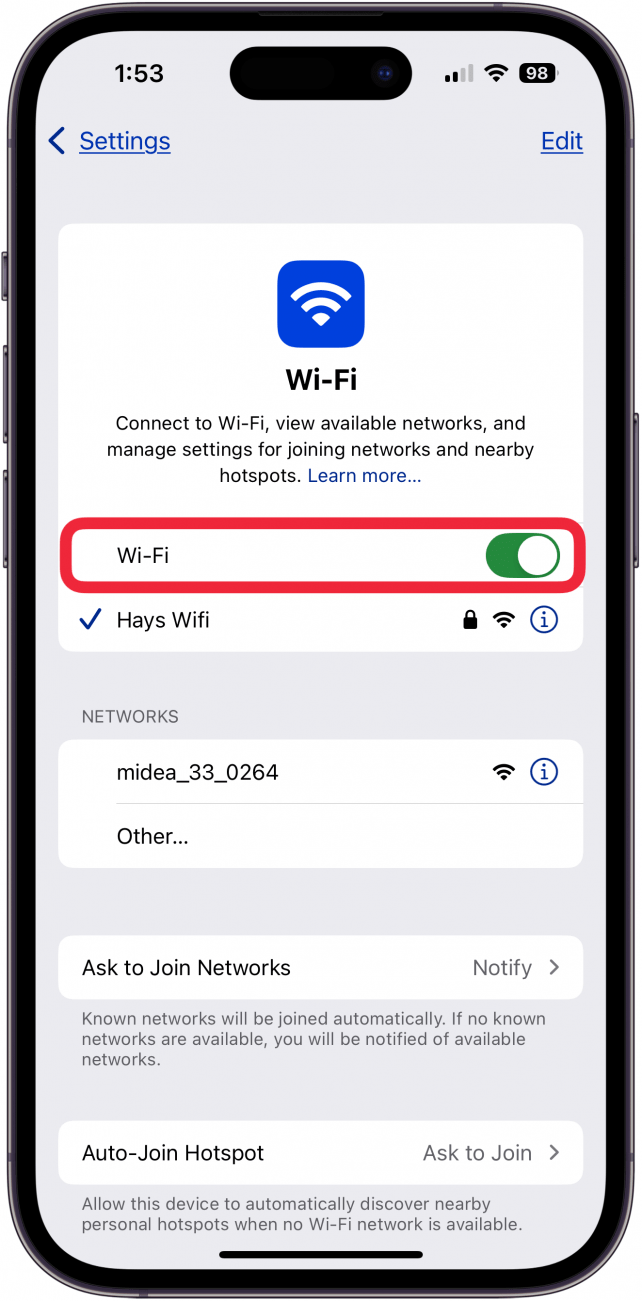
Still stuck? Sometimes resetting network settings on your iPhone helps—just remember this erases saved Wi-Fi passwords too.
Use Wired Connections
Using wired connections to link your iPhone to a car stereo offers a stable and direct way to play music. These connections often provide clearer sound quality without interruptions. They do not rely on wireless signals, making them reliable in any setting. Wired methods also charge your phone while playing audio.
Connect With Lightning Cable
Use the Lightning to USB cable that came with your iPhone. Plug one end into your phone and the other into your car’s USB port. The car stereo will recognize the device automatically. You can control music and playlists from the car’s display or your phone. This connection supports digital audio and charges your phone simultaneously.
Use Auxiliary Input
Locate the AUX port in your car, usually near the dashboard or center console. Connect your iPhone using a 3.5mm headphone jack to AUX cable. If your iPhone has no headphone jack, use a Lightning to 3.5mm adapter. Switch the car stereo to AUX mode to hear your phone’s audio. This method offers simple and quick connectivity without extra setup.
Optimize Audio Settings
Adjust your iPhone’s volume and equalizer settings for the best sound. Set the car stereo volume at a medium level before fine-tuning. Turn off any sound enhancements on your phone that might distort audio. Use the car stereo’s bass and treble controls to match your preference. Check that your cables are securely connected to avoid audio dropouts.

Credit: www.amazon.co.uk

Credit: www.amazon.com
Frequently Asked Questions
How Do I Connect My Iphone To Car Stereo Bluetooth?
Turn on your car stereo Bluetooth and enable iPhone Bluetooth. Select your car stereo from the iPhone’s Bluetooth list. Confirm the pairing code if prompted. Once connected, your iPhone audio will play through the car stereo.
Can I Use A Usb Cable To Connect Iphone To Car Stereo?
Yes, connect your iPhone to the car stereo using a compatible Lightning to USB cable. This allows music playback, charging, and access to apps via Apple CarPlay if supported.
What Apps Work Best For Iphone Car Stereo Connection?
Apple CarPlay is the best app for iPhone car stereo integration. It offers navigation, calls, messages, and music through the car stereo interface safely and efficiently.
Why Won’t My Iphone Connect To Car Stereo Bluetooth?
Check if Bluetooth is enabled on both devices. Make sure your car stereo supports iPhone Bluetooth. Restart both devices and try pairing again. Also, ensure your iPhone’s iOS is up-to-date.
Conclusion
Connecting your iPhone to a car stereo is simple and quick. Use Bluetooth, a cable, or an adapter to link devices. Play music, make calls, and enjoy hands-free control while driving. Check your car’s manual for specific steps. Keep your phone updated for smooth connection.
Enjoy better sound and safer trips on the road. Try different methods to find what works best for you. Stay connected and drive with ease every time you get in your car.