Have you ever wanted to play your favorite songs or take calls hands-free while driving, but didn’t know how to connect your phone to your car stereo? You’re not alone.
Making this connection can feel tricky, but once you get it right, your drives become safer and way more enjoyable. You’ll discover simple, step-by-step ways to link your phone to your car stereo—no tech skills needed. Keep reading, and soon you’ll be in control of your music and calls without ever taking your eyes off the road.
Prepare Your Devices
Before you start connecting your phone to your car stereo, it’s important to get both devices ready. Proper preparation makes the connection process smoother and saves you from frustration later. Taking a few minutes to check compatibility, activate the right settings, and ensure your phone is charged can make all the difference.
Check Compatibility
Not every phone works seamlessly with every car stereo. First, find out if your car stereo supports Bluetooth or an auxiliary input. You can usually find this information in your car’s manual or by checking the stereo’s model online.
Some older car stereos only have an auxiliary port, while newer models often come with Bluetooth. Knowing what your car stereo supports helps you decide whether you’ll need a cable or can connect wirelessly.
Enable Bluetooth Or Auxiliary Mode
If your car stereo supports Bluetooth, make sure it’s turned on and set to pairing mode. You might need to navigate the stereo’s menu to find the Bluetooth settings. If you prefer or need to use an auxiliary cable, switch your stereo to “Aux” mode.
On your phone, turn on Bluetooth in the settings menu and keep it visible for new devices. This step is crucial because your phone won’t detect the stereo if Bluetooth is off or hidden.
Charge Your Phone
Connecting your phone to your car stereo often uses extra battery power, especially with Bluetooth streaming. Before you hit the road, plug your phone into a charger or ensure it’s fully charged. This avoids interruptions during your drive and keeps your music or calls going strong.
Have you ever had your phone die in the middle of a trip? Taking this simple step can save you from that hassle and keep your connection steady.

Credit: www.reddit.com
Pair Your Phone With The Stereo
Pairing your phone with your car stereo is the essential step to enjoy hands-free calls, music streaming, and navigation prompts through your vehicle’s audio system. It might sound tricky, but once you get the hang of it, the process is quick and straightforward.
Activate Pairing Mode On Stereo
First, you need to put your car stereo into pairing mode. This option is usually found in the Bluetooth settings menu of your stereo system.
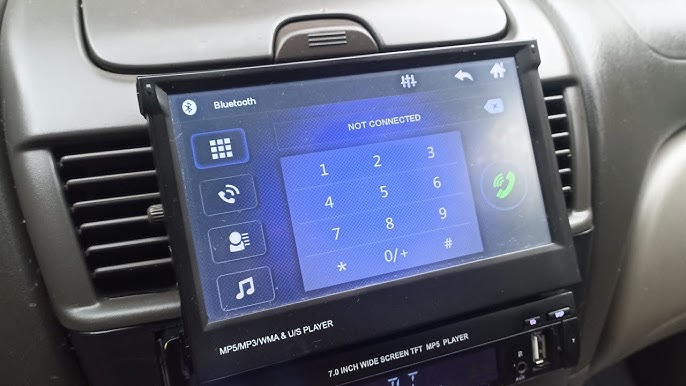
Look for a button labeled “Bluetooth,” “Phone,” or “Pair.” Press and hold it until the display shows a message like “Pairing,” “Searching,” or a blinking Bluetooth icon.
If you’re unsure where this is, check your car’s manual or the stereo’s touchscreen menu. Your stereo might even say the device name you need to find on your phone.
Search For Devices On Phone
Next, turn on Bluetooth on your phone and open the Bluetooth settings.
Your phone will start scanning for nearby devices. When your car stereo’s name appears on the list, tap it to begin the pairing process.
Sometimes the name can be a bit confusing—try looking for the model number or the car brand if it’s not obvious.
Confirm Connection
After selecting your car stereo on your phone, a prompt will usually ask you to confirm a passkey or PIN. This is often “0000” or “1234,” but your stereo display will tell you the correct code if it differs.
Confirm the code on both your phone and stereo if required. Once accepted, your devices will connect, and you should see a confirmation message.
Have you noticed any delay or failure at this stage? Try turning Bluetooth off and on again on your phone or restarting your stereo to reset the process.
Troubleshoot Connection Issues
Connection problems between your phone and car stereo can be frustrating. Simple troubleshooting steps often fix these issues. Follow the tips below to restore a smooth connection quickly.
Restart Devices
Turn off your phone and car stereo completely. Wait for about 30 seconds. Turn both devices back on. Restarting clears temporary glitches. This step often resolves minor connection errors.
Update Software
Check for updates on your phone’s operating system. Also, look for updates for your car stereo firmware. Updated software improves compatibility. It fixes bugs that may block Bluetooth connections.
Reset Bluetooth Settings
Open your phone’s Bluetooth settings. Remove or forget the car stereo device from the list. On the car stereo, delete your phone from paired devices. Then, pair them again as new devices. This clears old pairing data and resets connection preferences.

Credit: www.reddit.com

Credit: www.youtube.com
Frequently Asked Questions
How Do I Connect My Phone To Car Stereo Bluetooth?
Enable Bluetooth on both devices. Select your car stereo from your phone’s Bluetooth list. Confirm pairing by entering the code if prompted. Once connected, you can play music and make calls through the car stereo seamlessly.
Can I Use Usb To Connect Phone To Car Stereo?
Yes, connect your phone using a USB cable to your car’s USB port. This allows music playback and charging. Some car stereos support phone control and app integration via USB.
Why Won’t My Phone Connect To Car Stereo?
Check if Bluetooth is enabled on both devices. Ensure they are in pairing mode. Restart your phone and car stereo. Delete old Bluetooth connections if needed. Compatibility issues or outdated software can also cause connection problems.
Is Aux Cable Connection Better Than Bluetooth?
AUX cables provide a stable, wired connection with no audio delay. Bluetooth offers wireless convenience but may have slight audio lag. Choose based on convenience or audio quality preference.
Conclusion
Connecting your phone to your car stereo is simple and useful. You can enjoy music, calls, and navigation hands-free. Just follow the steps carefully to avoid trouble. Most cars use Bluetooth, but some need a cable or adapter. Check your car and phone settings before starting.
Practice once or twice to get comfortable. This small effort makes driving safer and more fun. Keep your phone charged for longer use. Now, you are ready to enjoy a better driving experience.