
Imagine driving with your favorite playlist or important calls flowing seamlessly through your car’s speakers—no wires, no hassle. If you’ve ever struggled to connect your phone to your car’s Bluetooth stereo, you’re not alone.
But what if you could master this simple skill in just a few easy steps? In this guide, you’ll learn exactly how to connect to your Bluetooth car stereo quickly and effortlessly. Get ready to enjoy clear sound and hands-free convenience every time you hit the road.
Keep reading—your perfect connection is just around the corner.
Prepare Your Devices
Getting your devices ready is the key to a smooth Bluetooth connection with your car stereo. Without proper preparation, you might face frustrating delays or failed pairings. Preparing your devices means ensuring compatibility, activating Bluetooth features, and setting the car stereo to pairing mode.
Check Bluetooth Compatibility
Not every phone or car stereo supports Bluetooth, so start by confirming both devices have this feature. Look in your phone’s settings for “Bluetooth” or check the user manual of your car stereo. If your car is an older model, it might not have Bluetooth built-in, but you can still use adapters designed for Bluetooth connectivity.
Have you ever tried to connect only to find out your device isn’t compatible? That moment of disappointment can be avoided by checking first.
Enable Bluetooth On Phone
Once you know your phone supports Bluetooth, turn it on. Usually, this is found in the settings menu under “Bluetooth.” Switch it to “On” and keep the device visible or discoverable so the car stereo can find it.
Keep your phone close to the car stereo as you enable Bluetooth to ensure a strong signal. If you’ve paired devices before, your phone might reconnect automatically, but it’s good to verify it’s active.
Turn On Car Stereo Bluetooth
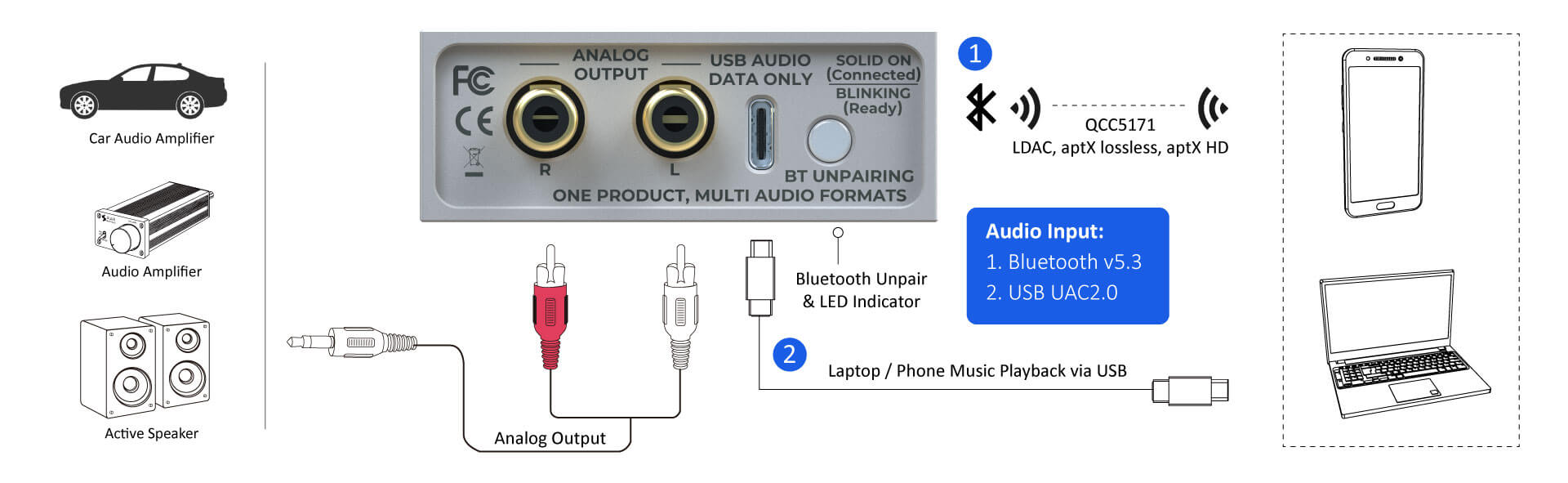
Next, activate Bluetooth on your car stereo. Many stereos have a dedicated Bluetooth button or you can find the option in the settings menu. Some models require you to enter pairing mode manually—this is often indicated by a flashing light or a message on the display.
Have you noticed how some car stereos hide Bluetooth settings deep within menus? Don’t hesitate to consult your car manual or search online for your specific model’s instructions. Getting this step right saves you time and frustration down the road.
Credit: store.sure-electronics.com
Pairing Your Phone With Car Stereo
Pairing your phone with your car stereo is the key to enjoying hands-free calls and streaming your favorite playlists on the road. It’s a straightforward process, but knowing exactly what to do can save you time and frustration. Let’s break down how to connect your device smoothly and get you driving with your music and calls ready to go.
Search For Available Devices
Start by turning on Bluetooth on your phone. Then, navigate to the Bluetooth settings menu where you’ll see an option to “search” or “scan” for nearby devices. Your car stereo should appear in the list of available devices—keep an eye out for your car’s make or model name.
If you don’t see your stereo immediately, try turning your car stereo’s Bluetooth mode on again or refreshing the search on your phone. Sometimes, the stereo might be listed under a slightly different name, so double-check your car’s manual for the exact Bluetooth ID.
Select Your Car Stereo
Once your car stereo appears on your phone’s list, tap on it to initiate the connection. This step tells your phone to connect specifically to your car’s audio system rather than any other nearby Bluetooth devices. At this point, your phone and stereo start communicating to establish a secure link.
If your phone asks whether to allow access to contacts or messages, granting permission can enhance your hands-free experience. Without this, some features like caller ID or text alerts might not work properly through your stereo.
Enter Pin Or Confirm Pairing
Many car stereos require a PIN to complete the pairing. This code is often “0000” or “1234,” but your car’s manual will have the exact number. Sometimes, instead of entering a PIN, your phone and stereo will display a code for you to confirm matches on both devices.
Confirming the pairing ensures your connection is secure and that you’re linking with the correct device. If the pairing fails, try restarting both your phone and stereo, then repeat the process. Have you ever wondered why some devices connect instantly while others need multiple tries? It often comes down to Bluetooth version compatibility and device settings.
Troubleshooting Connection Issues
Facing trouble connecting your phone to your Bluetooth car stereo can be frustrating, especially when you just want to enjoy your favorite music or take calls hands-free. Connection issues are common but often fixable with simple steps. Before giving up, try a few troubleshooting techniques that have helped many users regain seamless connectivity.
Restart Devices
Turning your phone and car stereo off and on again can clear temporary glitches affecting Bluetooth connections. Restarting resets the wireless modules and often resolves hidden conflicts. Have you noticed how a quick reboot sometimes fixes problems you thought were more complicated?
Simply power off your phone, wait about 10 seconds, then power it back on. Do the same with your car stereo if possible. After both devices restart, try pairing them again.
Clear Previous Pairings
Old or too many saved Bluetooth connections can clutter your devices and prevent successful pairing. Clearing out previous pairings on both your phone and car stereo gives you a fresh start.
Check your phone’s Bluetooth settings and remove any car stereo entries you no longer use. On your car stereo, look for a “clear all devices” or “delete paired devices” option. This step often resolves hidden conflicts caused by multiple stored connections.
Update Firmware And Software
Outdated software can cause compatibility issues between your phone and car stereo. Manufacturers frequently release updates that improve Bluetooth performance and fix bugs.
Check your phone’s system updates and install any available. Also, visit your car stereo manufacturer’s website or app to see if a firmware update is available. Updating both devices can make a surprising difference in connection stability.

Credit: www.hollyland.com

Credit: www.youtube.com
Frequently Asked Questions
How Do I Pair My Phone With A Bluetooth Car Stereo?
Turn on your car’s Bluetooth and phone’s Bluetooth. Search for available devices on your phone. Select your car stereo name to pair. Enter the PIN if prompted. Once connected, you can stream audio and make hands-free calls.
Why Won’t My Phone Connect To The Bluetooth Stereo?
Check if Bluetooth is enabled on both devices. Ensure your car stereo is in pairing mode. Remove old devices if the stereo memory is full. Restart your phone and stereo. Try pairing again to fix common connection issues.
Can Multiple Phones Connect To One Bluetooth Car Stereo?
Most Bluetooth car stereos support multiple device connections, but only one can actively play audio. Some models allow quick switching between paired phones. Check your stereo’s manual to confirm how many devices it can store and manage simultaneously.
How To Improve Bluetooth Connection Quality In Car Stereos?
Keep your phone close to the stereo to avoid signal drops. Remove any obstacles or electronic interference nearby. Update your phone’s software and car stereo firmware regularly. Clear unused paired devices to maintain a stable connection.
Conclusion
Connecting your phone to a Bluetooth car stereo is simple and quick. Just follow the steps carefully, and you will enjoy hands-free calls and music. Keep your devices updated to avoid connection problems. Remember to stay safe and focus on driving while using Bluetooth features.
Practice a few times to get comfortable with the process. Now, you can enjoy wireless audio easily on the road.