
Struggling to connect your phone to your JVC car stereo? You’re not alone.
Pairing Bluetooth might seem tricky at first, but once you get it right, you’ll enjoy hands-free calls and your favorite music on the road. In this guide, you’ll find simple, step-by-step instructions to make the process smooth and hassle-free. Keep reading, and by the end, you’ll have your devices connected effortlessly—ready to transform your driving experience.
Credit: sbrprosound.co.za
Prepare Your Devices
Preparing your devices is a crucial step before pairing your Bluetooth JVC car stereo. Ensuring everything is set up correctly saves you time and frustration. Let’s focus on the essentials you need to get ready for a smooth connection.
Check Compatibility
Not all phones and car stereos work perfectly together. Check if your phone supports Bluetooth version compatible with your JVC stereo. You can usually find this information in your phone’s settings or user manual.
Older phones might struggle with newer stereo models and vice versa. Have you ever tried pairing a device only to find it won’t connect? Avoid that hassle by confirming compatibility first.
Enable Bluetooth On Your Phone
Bluetooth must be turned on for your phone to find and connect with your stereo. Open your phone’s settings and switch Bluetooth to “On.”
Keep your phone visible to nearby devices during pairing. This step is often overlooked but essential. Have you noticed your phone sometimes doesn’t show up on your car stereo? Being discoverable fixes that.
Turn On Your Jvc Stereo
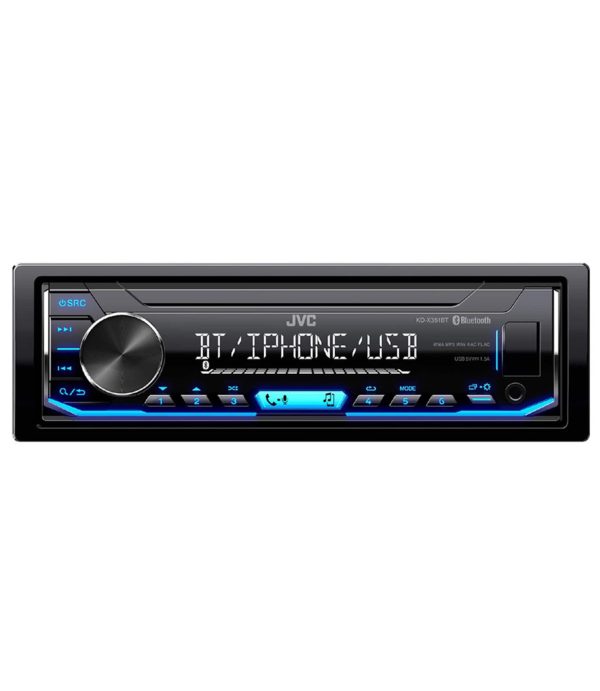
Make sure your JVC stereo is powered on and in pairing mode. Consult your stereo’s manual if you’re unsure how to activate Bluetooth mode.
Some models require holding down the Bluetooth button until a light flashes. This visual cue tells you the stereo is ready to connect. Have you ever missed this step and wondered why your devices wouldn’t pair? Double-checking this saves time.

Credit: manuals.plus
Pairing Process
Pairing your JVC car stereo with your phone via Bluetooth is simpler than you might think. The process involves a few straightforward steps that connect your devices securely, allowing you to enjoy hands-free calls and wireless music streaming. Understanding each step helps avoid common hiccups and gets you on the road faster.
Access Bluetooth Menu On Stereo
Start by turning on your JVC car stereo and accessing the Bluetooth settings. Usually, this option is found within the setup or settings menu on the stereo’s display. If you’re unsure, check your stereo’s manual for exact navigation instructions.
Once you reach the Bluetooth menu, make sure the Bluetooth function is enabled. This puts your stereo in discovery mode, ready to connect with your phone.
Search For Devices
Next, grab your phone and open its Bluetooth settings. Set your phone to search for new devices—it should begin scanning for nearby Bluetooth signals.
On your stereo, you might need to select an option like “Pair New Device” to make it visible to your phone. Keep both devices close to each other during this step to avoid connection issues.
Select Your Phone
Once your phone lists available devices, look for the name corresponding to your JVC stereo. It usually appears as “JVC” followed by a model number or similar identifier.
Select this name on your phone to start the pairing. If you don’t see it right away, try refreshing the list or restarting the Bluetooth search on both devices.
Confirm Pairing Code
A pairing code will appear on both your stereo screen and phone. This code ensures you’re connecting the correct devices and prevents accidental pairing with nearby gadgets.
Check that the codes match exactly, then accept the pairing request on both devices. Once confirmed, your phone and stereo will connect, and you’re ready to enjoy wireless audio.
Troubleshooting Tips
Sometimes, pairing your JVC car stereo with Bluetooth can face issues. These problems can stop your devices from connecting smoothly. Using simple troubleshooting tips often fixes common Bluetooth problems fast. Try these steps to get your connection working again.
Reset Bluetooth Settings
Resetting Bluetooth settings on your JVC stereo can clear glitches. This step removes temporary errors that block pairing. Usually, you find this option in the stereo’s setup menu. After reset, try pairing your device again.
Update Firmware
Firmware updates improve your stereo’s Bluetooth performance. Updates fix bugs and add new features. Check JVC’s official website for the latest firmware. Follow instructions carefully to install updates safely.
Clear Previous Connections
Old connections can cause conflicts with new devices. Remove unused or old devices from the stereo’s Bluetooth list. This frees space and avoids connection clashes. After clearing, start fresh with your current device.
Credit: www.amazon.com
Frequently Asked Questions
How Do I Start Pairing My Jvc Car Stereo?
Turn on your JVC car stereo and enable Bluetooth. Access the Bluetooth menu to make your stereo discoverable for pairing. Ensure your phone’s Bluetooth is on and ready to connect.
Why Won’t My Phone Connect To Jvc Stereo Bluetooth?
Check if the stereo is in pairing mode. Restart both devices, clear previous pairings, and try again. Ensure compatibility and that no other devices are connected.
How To Reset Bluetooth On Jvc Car Stereo?
Navigate to the settings menu on your JVC stereo. Select Bluetooth settings and find the option to reset or clear paired devices. Confirm to restore default Bluetooth settings.
Can Multiple Devices Connect To Jvc Car Stereo Bluetooth?
Most JVC car stereos support connecting one device at a time for audio playback. Some models allow multiple devices for hands-free calls, but not simultaneous audio streaming.
Conclusion
Pairing your JVC car stereo with Bluetooth is quick and easy. Just follow the simple steps carefully. This lets you enjoy hands-free calls and music on the go. No need for cables or complicated setups. Stay safe and focused while driving.
Keep your phone connected for better sound and control. Practice a few times to get comfortable with the process. Enjoy your drive with clear audio and simple tech. Bluetooth makes your car stereo smarter and more fun.