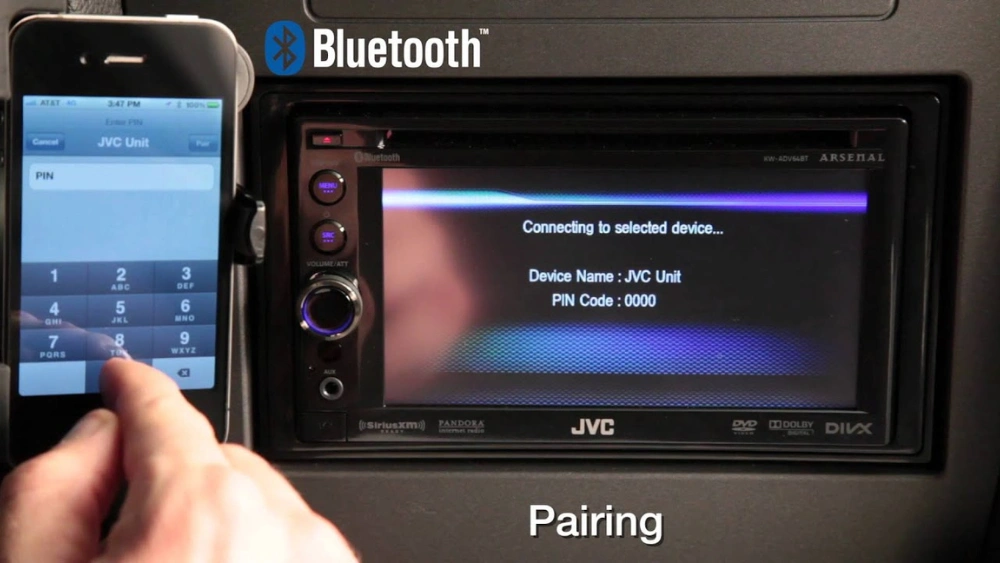
Are you tired of fumbling with wires every time you want to play music or take calls in your car? Pairing Bluetooth to your JVC car stereo can change the way you drive, making your trips safer and more enjoyable.
But if you’re not sure how to connect your device quickly and easily, don’t worry—you’re in the right place. This guide will walk you through simple steps that anyone can follow, so you can get your Bluetooth set up in no time.
Keep reading to discover how to unlock seamless audio and hands-free control in your car today.
Credit: www.amazon.com
Prepare Your Devices
Preparing your devices is the first step to a smooth Bluetooth connection with your JVC car stereo. It ensures both your stereo and phone are ready to communicate. This preparation saves time and avoids common pairing problems.
Check Stereo Compatibility
Not all JVC models support Bluetooth. Check your stereo manual or the model number online. Confirm it has Bluetooth features. This step prevents frustration during pairing.
Enable Bluetooth On Your Phone
Turn on Bluetooth in your phone’s settings menu. Make your phone visible to other devices. This makes your phone discoverable by the stereo. Stay close to the stereo during this process.
Clear Previous Pairings
Old connections can block new pairings. Delete unused Bluetooth devices from both your phone and stereo. This clears the way for a fresh connection. It helps avoid interference and connection errors.
Credit: sbrprosound.co.za
Pair Bluetooth With Jvc Stereo
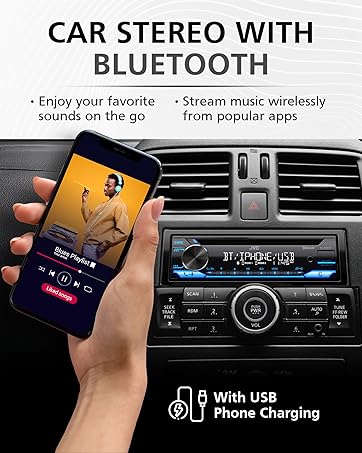
Pairing Bluetooth with your JVC car stereo lets you enjoy hands-free calls and wireless music. The process is simple and quick. Follow these clear steps to connect your phone and stereo seamlessly.
Access Bluetooth Settings On Stereo
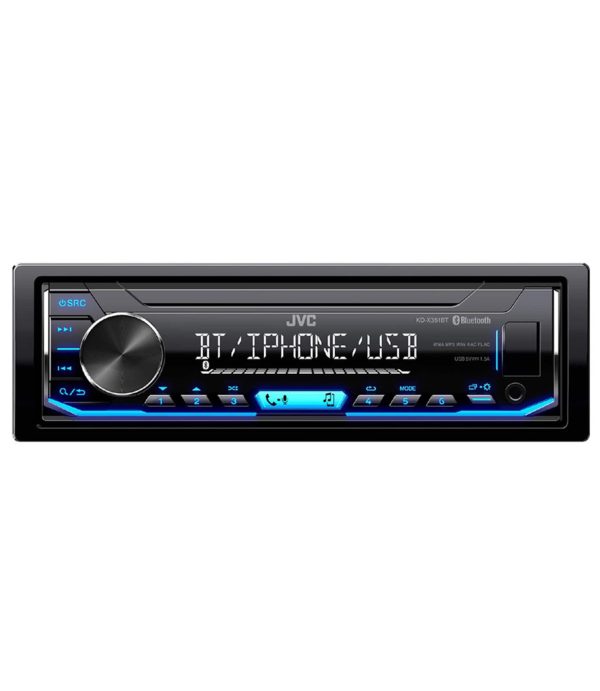
Turn on your JVC stereo. Press the “Menu” or “Settings” button. Find the Bluetooth option in the menu. Select Bluetooth settings to begin pairing.
Search For Devices
In the Bluetooth menu, choose “Search” or “Scan” for devices. The stereo will look for nearby Bluetooth devices. Wait until your phone appears on the list.
Select Your Phone
Choose your phone from the device list on the stereo screen. Confirm the connection by matching the PIN code if prompted. Accept the pairing request on your phone to finish.
Troubleshoot Connection Issues
Sometimes, connecting your device to a JVC car stereo via Bluetooth doesn’t go as smoothly as expected. Connection issues can be frustrating, especially when you need hands-free calls or your favorite playlist on the road. Troubleshooting these problems doesn’t require technical skills, just a bit of patience and the right steps.
Reset Bluetooth Settings
Resetting Bluetooth settings on your JVC stereo can clear any glitches blocking the connection. This process removes all paired devices, giving you a fresh start.
- Go to the stereo’s setup menu.
- Find the Bluetooth settings option.
- Select “Reset” or “Clear All Devices.”
After resetting, try pairing your device again. Have you noticed your phone connecting better after a reset in other gadgets? This simple step often solves hidden pairing conflicts.
Update Stereo Firmware
Outdated firmware can cause compatibility problems between your phone and the stereo. JVC periodically releases updates that improve Bluetooth performance and fix bugs.
- Visit JVC’s official website or use the JVC app to check for updates.
- Download and install the latest firmware following the instructions.
Keeping your stereo updated ensures smoother connections. Think about how your smartphone runs better after updates—your car stereo benefits the same way.
Check Device Distance And Interference
Bluetooth works best within a limited range. If your device is too far from the stereo, the connection can weaken or drop entirely.
- Keep your phone within 10 feet of the stereo for a stable link.
- Avoid physical barriers like thick car doors or metal objects between your device and stereo.
- Turn off other Bluetooth devices nearby that might interfere.
Have you ever noticed your Bluetooth headphones cutting out when you move too far from your phone? The same principle applies here. Maintaining clear, close proximity improves connection quality.

Credit: manuals.plus
Frequently Asked Questions
How Do I Connect Bluetooth To My Jvc Car Stereo?
To connect, turn on Bluetooth on both devices. Access the JVC stereo’s Bluetooth menu, select “Pair,” and find your phone. Choose your device name, then confirm the pairing code. Once paired, your phone will connect automatically next time.
Why Won’t My Phone Pair With Jvc Stereo?
Ensure Bluetooth is enabled on both devices. Delete old pairings on the stereo if needed. Restart your phone and stereo, then try pairing again. Make sure devices are close and in pairing mode.
Can I Pair Multiple Devices To Jvc Stereo?
Yes, JVC stereos support multiple Bluetooth devices. However, only one device can play audio at a time. You can switch between paired devices through the stereo’s Bluetooth menu.
How To Troubleshoot Bluetooth Connection Issues On Jvc Stereo?
Restart both your phone and stereo. Delete previous Bluetooth pairings on the stereo. Update your phone’s software if available. Ensure devices are within close range and Bluetooth is enabled.
Conclusion
Pairing Bluetooth to your JVC car stereo is simple and quick. Just follow the clear steps to connect your device. This lets you enjoy music and calls hands-free. No need for wires or extra tools. Stay focused on driving while using your phone safely.
Remember to check your stereo’s manual for specific details. Practice a couple of times to get comfortable. Soon, Bluetooth will become a handy feature in your car. Enjoy the convenience and better sound on every trip.