
Have you ever missed an important turn because your phone’s navigation was too quiet or hard to hear over the road noise? Getting Waze to use your car’s audio system can change that.
Imagine clear, loud directions coming straight through your car speakers, so you never miss a beat while driving. In this guide, you’ll learn simple steps to connect Waze to your car audio system and make your driving experience safer and more enjoyable.
Keep reading to find out how easy it is to boost your navigation with better sound.
Credit: medium.com
Connect Waze To Car Audio
Connecting Waze to your car audio system makes navigation clear and safe. Hearing directions through your car speakers keeps your eyes on the road and hands on the wheel. Several ways exist to link Waze audio from your phone to your car. Choose the best method based on your car’s features and phone type.
Using Bluetooth For Audio
Bluetooth is a common way to connect Waze to car audio. Most modern cars support Bluetooth for audio streaming and calls. To use Bluetooth, turn on your car’s Bluetooth system and enable Bluetooth on your phone. Pair both devices by selecting your car’s name from the phone’s Bluetooth list. Once connected, Waze audio will play through the car speakers automatically.
- Ensure your phone’s volume is up.
- Check if the car audio source is set to Bluetooth.
- Test by playing a Waze alert sound.
Wired Connection Options
A wired connection can provide a stable audio link. Use a 3.5mm auxiliary cable if your car has an AUX input. Plug one end into your phone’s headphone jack or adapter. Insert the other end into the car’s AUX port. Set the car audio to AUX mode to hear Waze instructions.
Some cars support USB connections. Connect your phone via USB cable. This may also charge your phone while playing audio. USB connections often allow better control through the car’s interface.
Carplay And Android Auto Setup
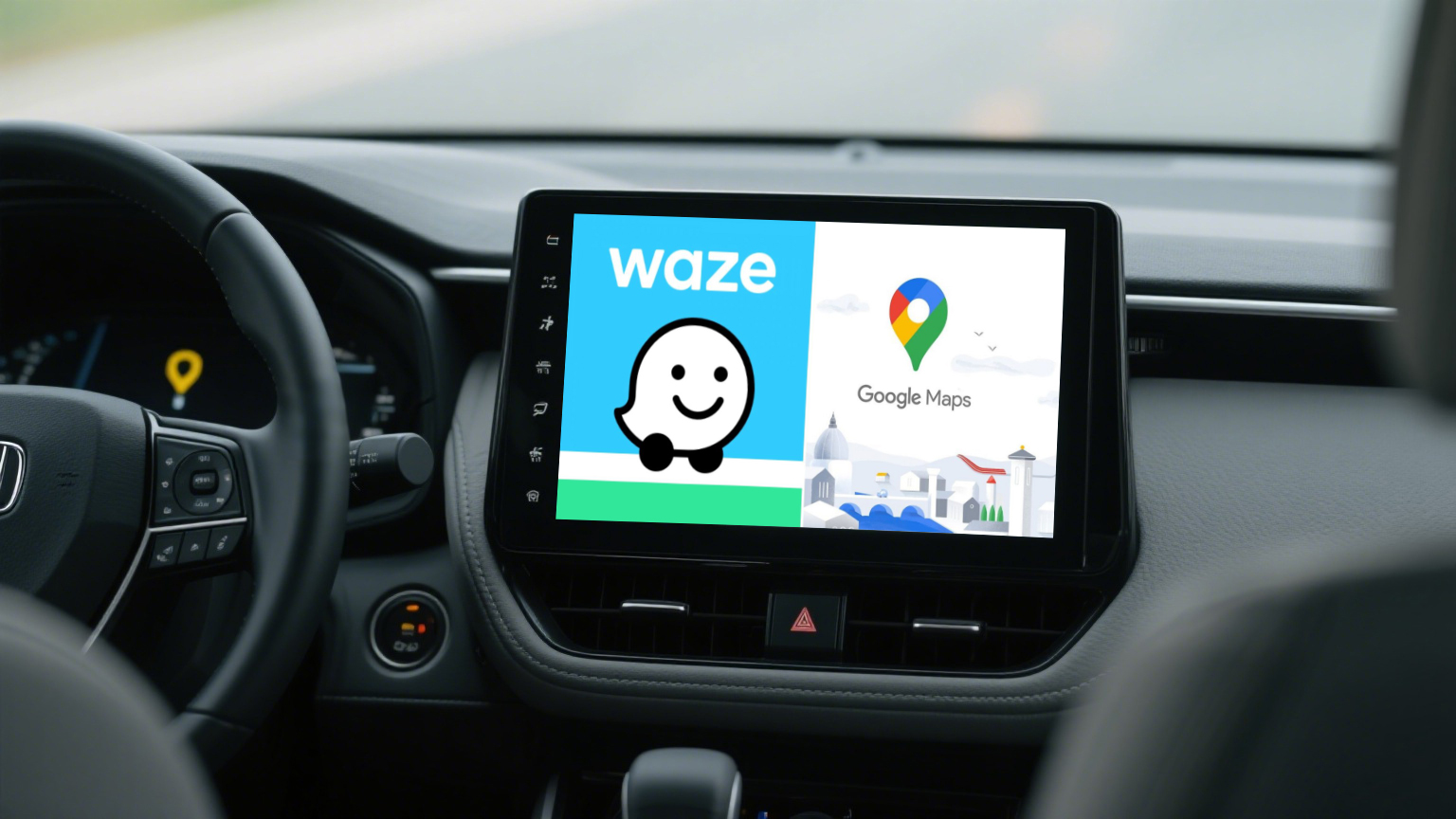
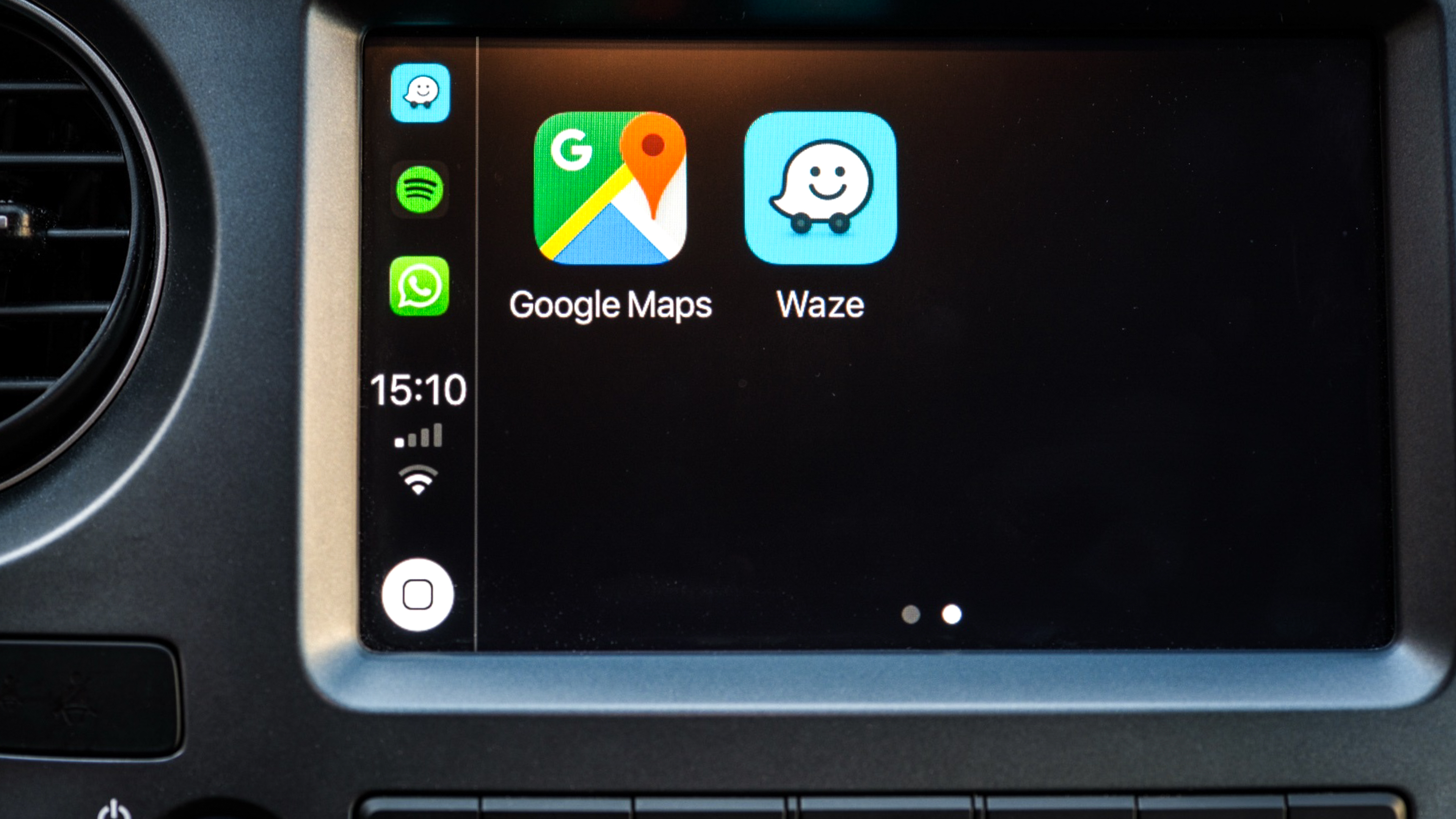
CarPlay and Android Auto are designed to integrate apps like Waze with your car. Connect your phone via USB or wireless connection, depending on your car model. Follow on-screen prompts to enable CarPlay or Android Auto. Open Waze from the car’s display to start navigation.
- Use the car’s touchscreen to control Waze.
- Voice commands can help keep attention on driving.
- Ensure your phone’s operating system supports these features.
Credit: www.carluex.store
Adjust Waze Audio Settings
Adjusting Waze audio settings helps you hear directions clearly through your car’s audio system. Clear voice guidance improves your driving experience and safety. Customize these settings to suit your preferences and car setup.
Enable Voice Guidance
Turn on voice guidance to hear spoken directions from Waze. Open the Waze app and tap the speaker icon. Choose “Sound On” to activate voice directions. Make sure your phone volume is up. This setting ensures Waze talks to you during your drive.
Set Audio Output Preferences
Choose where Waze sends its audio. Go to Waze settings and select “Voice & Sound.” Find the option for audio output. Pick your car’s Bluetooth or car audio system. This sends Waze’s voice instructions through your car speakers, not just the phone.
Manage Volume Levels
Control the volume of Waze voice directions separately. Inside Waze settings, tap “Voice & Sound.” Adjust the navigation volume slider to a comfortable level. Balance it with your music or radio volume. This avoids loud or too quiet directions while driving.
Troubleshoot Common Issues
Connecting Waze to your car’s audio system should be straightforward, but sometimes issues get in the way. Troubleshooting these common problems can save you from frustration and keep your drive smooth and safe.
No Sound From Car Speakers
If you don’t hear any Waze voice prompts through your car speakers, start by checking the audio source. Make sure your phone is properly connected via Bluetooth or AUX cable and that the car audio is set to the correct input.
Also, verify that Waze’s volume isn’t muted or too low. Sometimes, the app’s voice guidance volume is controlled separately from your phone’s media volume. Try increasing the Waze voice volume inside the app settings.
Have you ever missed a turn because the app was silent? Adjusting these settings can help you avoid that next time.
Audio Delays Or Interruptions
Hearing delayed or choppy Waze prompts can be distracting. This often happens due to weak Bluetooth connection or interference from other apps running in the background.
Try turning Bluetooth off and on again, or disconnect and reconnect your phone. Closing other apps that use audio or data can also improve performance.
Consider restarting both your phone and car system if problems persist. Have you noticed your music playing fine but Waze lagging behind? It’s a sign your connection needs a reset.
Resetting Waze Audio Settings
If tweaking volume and connections doesn’t fix the problem, resetting Waze’s audio settings might help. You can do this by going to Waze’s settings menu, selecting “Voice & Sound,” and then choosing “Reset voice guidance.”
This clears any custom settings that might be causing issues. After resetting, test the voice prompts again while connected to your car’s audio.
Sometimes, a fresh start is exactly what your app needs to work smoothly. Have you tried this quick fix before calling it quits?
Credit: www.tomsguide.com
Frequently Asked Questions
How Do I Connect Waze To My Car Audio System?
To connect Waze to your car audio, use Bluetooth or an auxiliary cable. Pair your phone with the car’s audio system. Ensure the car audio source is set to Bluetooth or AUX. This enables Waze voice navigation to play through your car speakers clearly.
Can Waze Audio Play Through Bluetooth In My Car?
Yes, Waze audio can play via Bluetooth if your car supports it. Pair your smartphone with the car’s Bluetooth system. Make sure Waze audio is enabled in your phone’s settings. This allows voice directions to come through your car’s speakers.
Why Is Waze Not Playing Audio Through My Car Speakers?
Check if your phone is connected to the car’s audio system properly. Verify volume levels on both devices. Ensure Waze audio is not muted in the app settings. Sometimes, restarting your phone or car system can fix audio issues.
How To Enable Waze Voice Directions On Car Speakers?
Open Waze and go to settings. Tap on “Voice & Sound” and select a voice. Connect your phone to the car audio system via Bluetooth or AUX. Voice directions will then play through your car speakers automatically.
Conclusion
Using Waze with your car audio system makes driving safer and easier. You hear directions clearly without looking at your phone. Just connect your phone to your car’s Bluetooth or AUX cable. Adjust settings in the Waze app to send sound to your car speakers.
This simple setup helps you stay focused on the road. Enjoy hands-free navigation with clear voice prompts. Driving becomes less stressful and more enjoyable. Try these steps today to improve your driving experience with Waze and your car audio system.